
The Unbabel SC integration supports the standard Salesforce case flows. It was specifically designed to be used on Email2Case and Web2Case.
Unbabel is seamlessly integrated into Salesforce Service Cloud, delivering human-quality translations at speed. Inbound emails/Cases are translated into English. Agents will then reply in English, and our award winning translation pipeline delivers the native language translation to your customers.
Below you will find a short description of our translation flow and a guide on using the product. The article assumes that a standard installation resulting from following our Installation Guide is in place, but even if you customized the environment, the basic principles should apply. You can also check this article on Getting Started using Omni-Channel.
Starting the translation flow
Unbabel is prepared to operate in a Case context. All communications need to give origin to a Case for our product to be able to produce translations. There are some variations depending on how you assign or route cases, but the usual first step is to open any console with a Case view (ex: Service Console).
From there, you need to find any View (Personal, Queue, etc) where you can select the Case.
The original inbound message will be visible in the native SF feed, while its respective translation will be available in the Translations Feed located inside the Unbabel tab. Unbabel can translate email messages, internal comments and chat transcripts.
Should your Case only contain a description, we can translate that as well, and you will find both in the Unbabel Translated Description under the Details tab and as a Translations Feed entry. The detected Unbabel Main Language will also be set there. The Unbabel Language field can be changed at any time by clicking the pencil icon next to the field (don't forget to save your changes).
You can alternate between the customer language and agent language views by clicking the language toggle button. The view displayed in the button is always the current view.
Notice the message is tagged according to some properties:
- Status: Translating or Translated
- Author: Agent or Customer
- Source: Original denotes the message is displaying as written by the author. Omission of the tag means you are looking at the translated output.
- Error: an error has affected the translation.
You can click the refresh button next to the language toggle to update the status of any translation entry.
Automatic translation
A case will translate automatically if it is owned by an Unbabel queue or if your Automatic translation settings so determine it. You can learn more about these features here.
Apart from this, any time the Translations Feed is loaded, we screen for any untranslated messages and send them for translation too. Note: the component needs to fully reload, so navigating tabs is not enough. You may need to click the refresh button to trigger missing translations.
Any time new translations are requested/incoming, we will use the selection of Unbabel Main language to determine the source language.
Reply using Translate Draft components
You can send a translated reply to the customer by using the Unbabel translation component. Find the component named Translate Draft and Send Email. This component enables an agent to translate the draft email they have saved on the native email publisher and send the translated email when the translation arrives
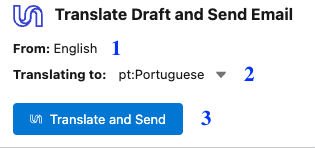
The component has two fields and one button: the agent language (1), the customer's language (2) and the translated and send button (3). Customer language can be changed to adapt incoming and outgoing translations, but agent language is set at the user level as the Unbabel main language.
To send a reply to the customer:
1 - Type your email in the SF email publisher. You can use templates, merge fields, and other supported SF features.
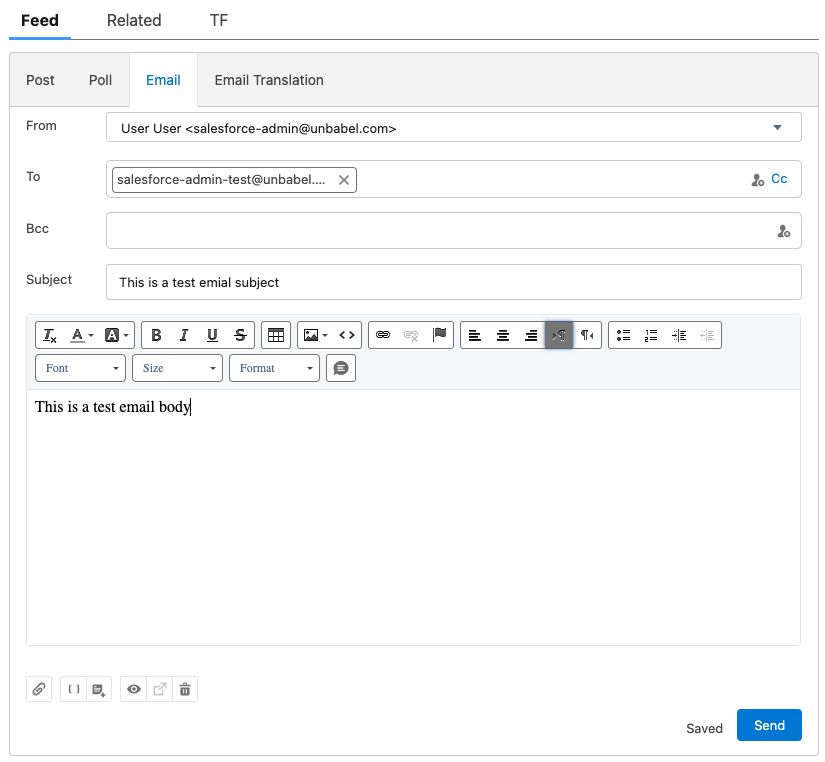
2 - Do not click the send button in the publisher! That would cause the untranslated message to go through.
3 - Find the Unbabel component and click translate and send instead.
4 - Wait to see that the translation has been requested.

5 - You can check if the email has been sent on the Translations feed tab.
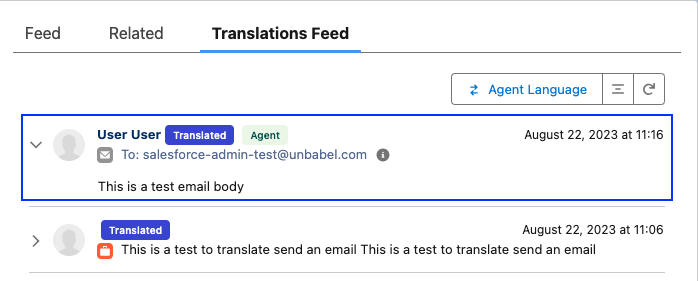
Your email will reach the customer in their native language. The process restarts once the customer replies back.
Additional Notes:
- You shouldn’t discard the draft while the translation is in progress
- Selected From Email should be an org-Wide Address, or the message will fail to send
- To Address must be filled
- If you're using the Translate and update draft component, the flow is similar, but you will receive a SF custom notification once the draft is translated. Navigate to the publisher to find the email translated and click Send in the publisher.
Reply using the Email publisher translation component
If you are using the Email publisher translation component, you can create a translation request by toggling Translate and reply with Unbabel on or off in the component slider. While on, the component changes the native email publisher send button to Translate and Send, which introduces the Unbabel flow and translates the message before it is sent. To go back to sending a message without translation, simply turn the slider off.
Publisher with Unbabel off
Publisher with Unbabel on
Other workflows
Small differences may need to be considered if you're using different workflows or modes.
Translation deletion
Depending on your settings concerning Translation Requests deletion, some translations may be removed from a Case's Unbabel Feed. This is because the content displayed in that view is fetched from the Translation Request.
Entering the Translations Feed should request new translations, provided the user accessing it has the necessary Unbabel permissions.