
The Unbabel for Salesforce Service Cloud introduces objects, actions and fields that need to be added to the appropriate Page Layouts. Failure to configure all Layouts the Unbabel agents will be using will result in the integration options not being available.
A page layout that will typically need configuration is the Case object.
Edit Case Page Layouts
Navigate to the Cases page layout by following these steps:
1 - Select Setup. Go to Object Manager, search and click on Case. Open Case Page layouts.
You will need to perform some adjustments on the Case Page Layout page:
1 - Click on the Case Page Layout you will be modifying. Make sure it is a Feed-Based Layout. To learn more on how to create or convert to Feed-based layouts, read this SF article.
2 - To add Unbabel fields, click on the Fields section.
3 - Create a section using drag and drop:
4 - Name it Unbabel and apply the following settings:
5 - Add the following fields to this newly created section:
- Unbabel Language
- Unbabel Translated Description (optional if using the Translations Feed view)
- Always Check Language
6 - Click the Save button. Repeat the process any other feed based Case page layout that you are using.
Adding the Unbabel Translation components to the Flexipage
The previous custom Unbabel email publisher quick action saw end of support at the end of 2024, being replaced by the Unbabel translation components and the Email translation component.
You have multiple options to request translations with Unbabel through our custom components:
- the Email publisher translation component
This component consists of a slider that toggles off or on. If on, it changes the native component's send button to "Translate and send", adding the Unbabel flow to the sending of the email. A translation request is created and the email is sent when it completes.
- the Translate and update draft component
Picks the text in the native email publisher and runs it through Unbabel. Once translated, the original text is replaced with the translated content, but the email only sends once the agent clicks the Send button.
- the Translate draft and send email component
Picks the text in the native email publisher, runs it through Unbabel, and immediately sends the email once complete, without the need for further agent actions.
You can use just one or a combination of the components, according to your preferences.
The Unbabel translation components need to be added to all pages in use by agents.
Adding the Email publisher translation component
1 - Navigate to the case record that has assigned the flexipage you want to change.
2 - Click the setup gear icon, then select Edit Page.
3 - On the components search box type: Unbabel Email Publisher Translation to find the component under the custom components list.
4 - Drag the component to the desired area of the layout.
5 - Save and repeat the process in every page accessible by agents using Unbabel.
Adding the Unbabel Translate draft / Translate and send components
1 - Navigate to the case record that has assigned the flexipage you want to change.
2 - Click the setup gear icon, then select Edit Page.
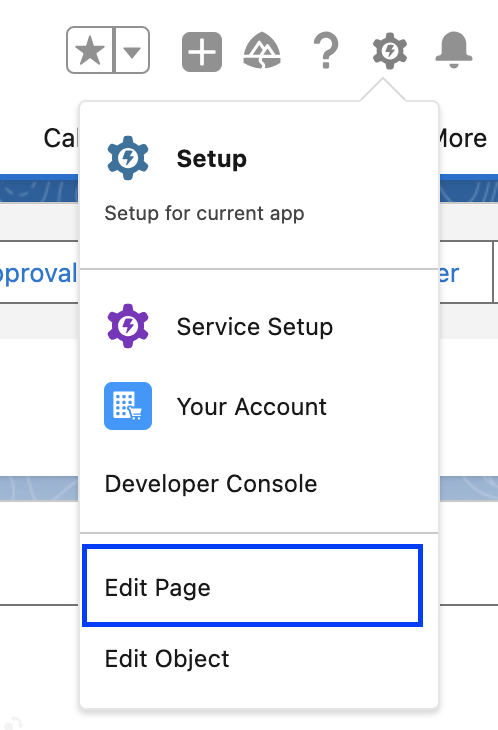
3 - On the components search box type: “unbabelTranslateDraftAndSendEmail” and/or to find the component under the custom components list. This component is responsible for translating an email draft and send the translation to the customer once finished.
Another component, “unbabelTranslateAndUpdateDraft”, is available. This translate the draft but doesn't send the message. Can be used as an alternative when apex limits are hit.
4 - Drag the component(s) to the desired page area.
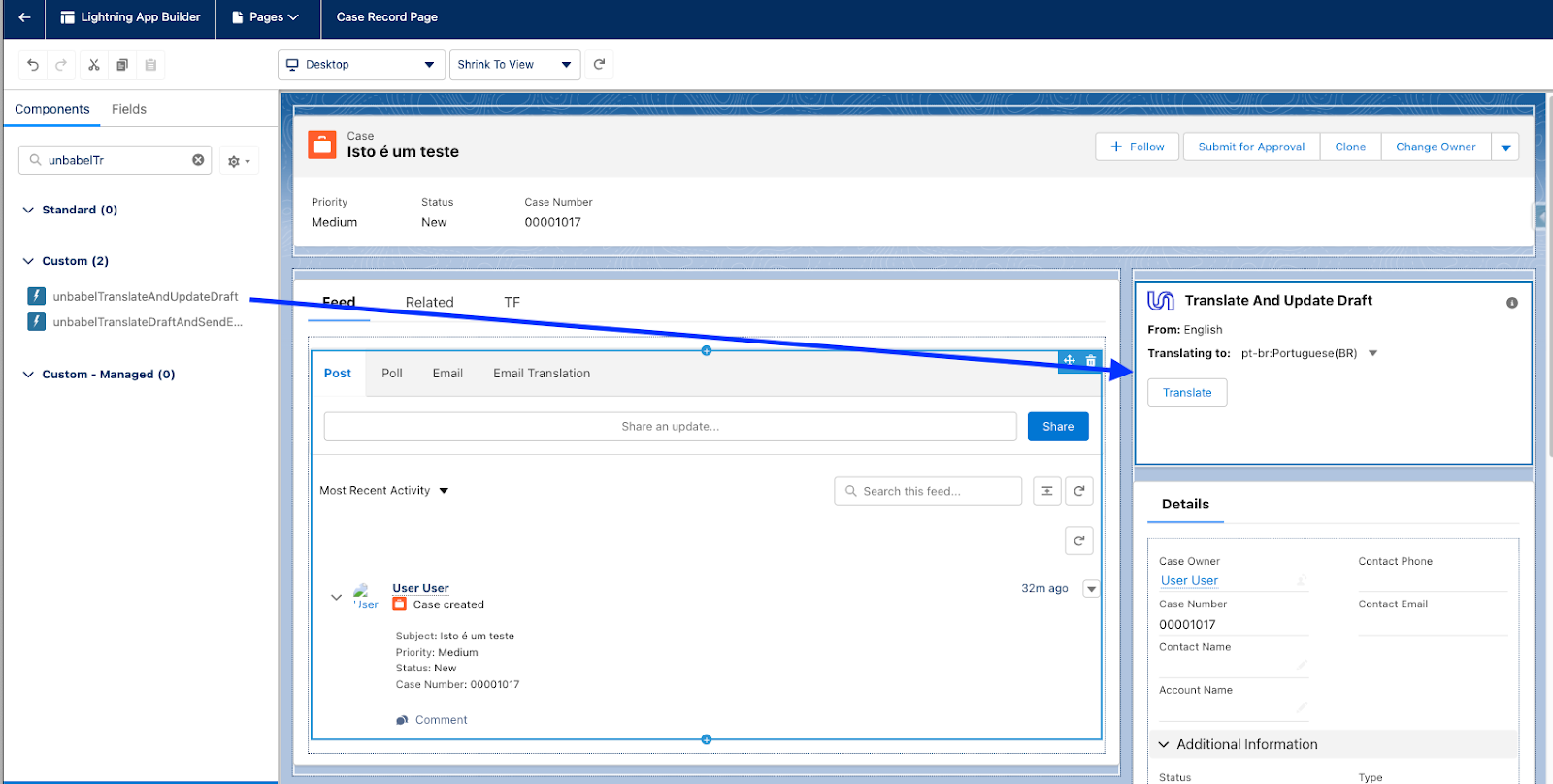
5 - Save and repeat the process in every page accessible by agents using Unbabel.
Session Settings - Trusted domains for iFrames
If you are enabling clickjack protection for customer VisualForce pages in your Session Settings, the Unbabel Email translation component will fail to render.
To solve this:
1 - Either disable clickjack protection OR
2 - Add https://[mydomain]--unbabelsc.vf.force.com for both LightingOut and VisualForcePages iFrame types as a trusted domain in your Session Settings.
Let's configure the Translations Feed so it shows on the Case page next.